🏡 Spreadsheets, Photos, and the Art of Moving Out
When you move out of a cohousing, you don’t just pack your boxes — you pack your shared life.
And in our case, that meant making an inventory of everything that lived in the house at Van Ooteghem:
Who takes what, what gets sold, and what’s destined for the containerpark.
To keep things organised (and avoid the classic “wait, whose toaster was that again?” discussion), we split the task — each person took care of one room.
I was assigned to the living room.
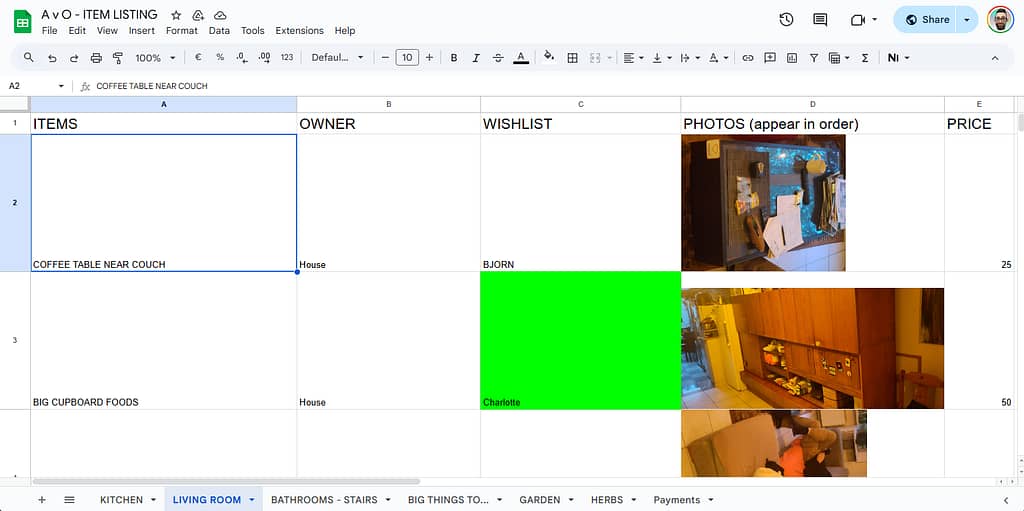
I made photos of every item, uploaded them to our shared Dropbox folder, and listed them neatly in a Google spreadsheet:
one column for the Dropbox URL, another for the photo itself using the IMAGE() function, like this:
=IMAGE(A2)
📸 When Dropbox meets Google Sheets
Of course, it didn’t work immediately — because Dropbox links don’t point directly to the image.
They point to a webpage that shows a preview. Google Sheets looked at that and shrugged.
A typical Dropbox link looks like this:
https://www.dropbox.com/s/abcd1234efgh5678/photo.jpg?dl=0
So I used a small trick: in my IMAGE() formula, I replaced ?dl=0 with ?raw=1, forcing Dropbox to serve the actual image file.
=IMAGE(SUBSTITUTE(A2, "?dl=0", "?raw=1"))
And suddenly, there they were — tidy little thumbnails, each safely contained within its cell.
🧩 Making it fit just right
You can fine-tune how your image appears using the optional second argument of the IMAGE() function:
=IMAGE("https://example.com/image.jpg", mode)
Where:
1– fit to cell (default)2– stretch (fill the entire cell, may distort)3– keep original size4– custom size, e.g.=IMAGE("https://example.com/image.jpg", 4, 50, 50)(sets width and height in pixels)
💡 Resize the row or column if needed to make it look right.
That flexibility means you can keep your spreadsheet clean and consistent — even if your photos come in all sorts of shapes and sizes.
🧍♀️ The others tried it too…
My housemates loved the idea and started adding their own photos to the spreadsheet.
Except… they just pasted them in.
It looked great at first — until someone resized a row.
Then the layout turned into an abstract art project, with floating chairs and migrating coffee machines.
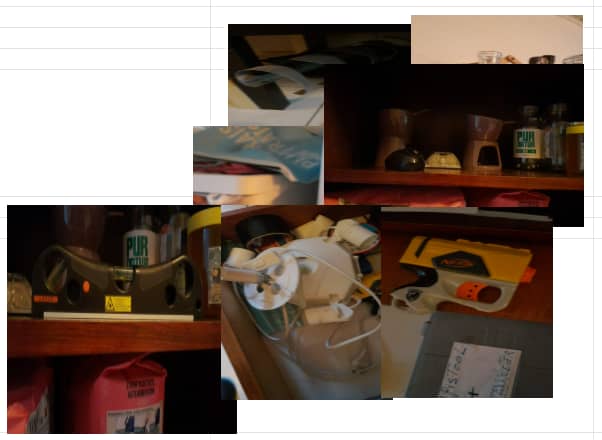
The moral of the story: IMAGE() behaves like cell content, while pasted images are wild creatures that roam free across your grid.
🧮 Bonus: The Excel version
If you’re more of an Excel person, there’s good news.
Recent versions of Excel 365 also support the IMAGE() function — almost identical to Google Sheets:
=IMAGE("https://www.dropbox.com/s/abcd1234efgh5678/photo.jpg?raw=1", "Fit")
If you’re still using an older version, you’ll need to insert pictures manually and set them to Move and size with cells.
Not quite as elegant, but it gets the job done.
🧹 Organised chaos, visual edition
So that’s how our farewell to Van Ooteghem turned into a tech experiment:
a spreadsheet full of URLs, formulas, furniture, and shared memories.
It’s oddly satisfying to scroll through — half practical inventory, half digital scrapbook.
Because even when you’re dismantling a home, there’s still beauty in a good system.